1. Home
  2. AI & Integrations
  3. Integrations
  4. Document Signing Action – DocuSign Integration

Document Signing Action – DocuSign Integration

Overview

The Document Signing action sends one or more documents from a GW Apps record to DocuSign for electronic signature. DocuSign emails the designated signers and manages the signing experience. After signing is complete, GW Apps can move the record to another workflow stage, attach the signed document to the record, or do both.

The saved action does not run by itself. Add it to a workflow action button when a user should deliberately start signing, or add it to a trigger when the request should be sent automatically after a qualifying record event.

Availability: Document Signing requires an authorized DocuSign account and may depend on the features enabled for your GW Apps environment.

Prerequisites

Before configuring the action, make sure you have:

  • App Designer access to the GW Apps application.
  • A DocuSign account authorized to send envelopes from the intended DocuSign environment.
  • A GW Apps form containing the record data and signer information required by the process.
  • At least one supported signing document: a Word merge file, a static PDF, or a GW Apps PDF template.
  • A unique signature anchor included in the appropriate location for every signer.
  • User or Email fields when signer details will come from the current record.
  • An Attachment field if the completed signed document will be stored on the record.
  • A destination workflow stage if the record should move after all required signing is complete.
  • Fictional test records and approved test signers for validation before production use.

Security: Use an approved DocuSign account and test documents that contain no confidential, regulated, or customer information.

How the Action Works

  1. A workflow action button or trigger launches the saved Document Signing action.
  2. GW Apps prepares the selected documents and creates a DocuSign signing request.
  3. DocuSign emails the signers using the configured subject and message.
  4. Signers receive the request in the configured order and sign at the locations identified by their anchors.
  5. After DocuSign reports completion, GW Apps applies the configured record-stage and signed-document updates.

Create the Document Signing Action

  1. Open the application in the Application Designer.
  2. In the left navigation, select Actions.
  3. Select + Create Action.
  4. Choose Document Signing as the action type.
  5. Enter a clear Name and an optional Description.
  6. Select the form whose records will launch the signing request.
  7. Create the action to open its complete configuration page.

For general information about reusable actions, see Workflow: Actions.

Connect a DocuSign Account

  1. Under DocuSign Configuration, select Authenticate with DocuSign.
  2. Sign in with the approved DocuSign account.
  3. Review the authorization request and grant the required permissions.
  4. Return to GW Apps and verify that the expected user and account are displayed.

Account scope: The connected DocuSign account determines the sending identity and the DocuSign environment used by the action. Reauthenticate if the account is changed, access is revoked, or the authorization expires.

Figure 1. Configure the action name and form, then authenticate the approved DocuSign account.

Add Documents to Be Signed

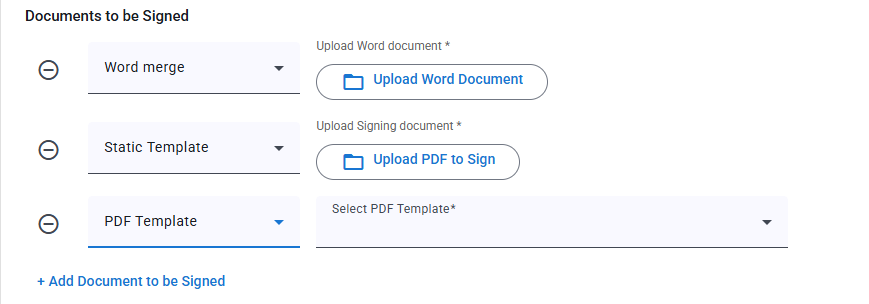
Select + Add Document to be Signed for each document that should be included in the signing request. The current editor provides three document sources:

Document sourceWhen to use it
Word mergeUpload a Microsoft Word .docx template. Use the form’s verified field shortcodes when record values must be merged into the document before it is sent.
Static TemplateUpload a PDF that will be sent as a fixed signing document. Use this when the document content does not need to be generated from a GW Apps PDF template.
PDF TemplateSelect an existing PDF template created in the GW Apps application and associated with the selected form.
+ Add Document to be SignedAdds another signing document. Review the final envelope carefully when multiple documents are included.
Figure 2. Add Word merge files, static PDFs, GW Apps PDF templates, or a combination of supported documents.

Prepare Signature Anchors

A sign anchor is unique text placed in the source document at the location where DocuSign should add a signer’s signature control. The value entered in GW Apps must match the anchor text in the document exactly.

  1. Create a unique anchor for each signer, such as [[employee_signature]] or [[manager_signature]].
  2. Place the anchor in the document where that signer should sign.
  3. Enter the identical value in the signer’s Sign anchor field in GW Apps.
  4. Avoid anchors that also appear in normal document text or in another signer’s signature block.
  5. Test the generated DocuSign envelope and confirm that every signature control appears in the intended location.

Important: Anchor matching and final placement are controlled by the document and DocuSign. A missing, duplicated, or altered anchor can place the signing control incorrectly or prevent the request from working as intended.

When using an application PDF, prepare and test it first in PDF Templates.

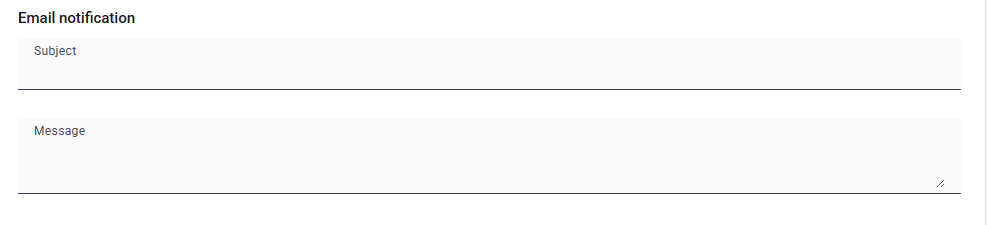
Configure the DocuSign Email

  1. In Subject, enter a concise description of the signing request.
  2. In Message, explain what the recipient is being asked to review and sign.
  3. Avoid placing sensitive record information in the subject line.
  4. Send a test request and confirm that the subject and message appear correctly in the DocuSign email.

Notification scope: This section supplies the message used for the DocuSign signing request. Reminders, expiration notices, completion messages, and other envelope notifications can also depend on the connected DocuSign account and envelope settings.

Figure 3. Enter the subject and message that DocuSign will send with the signing request.

Configure Signers, Order, and Anchors

Select + Add Signer for every person who must sign. Configure each signer using the following fields:

Field or optionDescription
OrderControls the sequence in which signers receive the request. Use a clear sequence such as 1, 2, and 3 when approval must occur in a specific order.
Signer Type: UserSelect or identify a user from the GW Apps platform directory.
Signer Type: EmailEnter a fixed email address. Use this only when a static recipient is appropriate for every record processed by the action.
Signer Type: FieldResolve the signer from a supported User or Email field on the selected form. This is the preferred option when the signer varies by record.
Sign anchorEnter the exact unique anchor included in the signing document for this signer.
+ Add SignerAdds another signer row to the signing sequence.
Figure 4. Add signers, define their order and source, and map each signer to a document anchor.

Before saving: Confirm that every signer resolves to a valid email address and that each signer has a matching anchor in at least one selected document.

Configure Post-Signature Record Behavior

Record Configuration controls what GW Apps does after DocuSign reports that signing is complete.

Field or optionDescription
Update record stage once document is signedMoves the current record to the selected workflow stage after completion. Select a stage that represents a completed signing outcome, such as Signed, Completed, or Active.
Add signed document to record fieldAdds the completed signed document to the selected Attachment field on the current record.
Both optionsMoves the record and stores the signed document after completion. Test both results together before using the action in production.
Figure 5. Optionally move the record to a new stage and attach the completed signed document.

Troubleshooting

Field or optionDescription
DocuSign authentication failsConfirm the account, environment, permissions, browser sign-in, and organization policy. Reauthenticate using the approved sending account.
The expected account is not shownSign out of the unintended DocuSign session if appropriate, authenticate again, and verify the displayed user and account ID before saving.
A document cannot be selectedConfirm that the file uses a supported source type and that the GW Apps PDF template belongs to the selected form.
Record values are missing from a Word mergeConfirm that the template contains the exact field shortcodes exported from the selected form and that the test record contains values.
A signer does not receive the requestConfirm the signer order and verify that the User, Email, or Field source resolves to the intended valid email address. Also review the DocuSign envelope status.
A signature control is missing or misplacedCompare the Sign anchor with the document text character by character. Confirm that the anchor is unique and located in the correct signature block.
The wrong signer receives the request firstReview the Order values assigned to every signer and retest using separate documentation accounts.
The record does not move after signingConfirm that all required signers completed the envelope and that Update record stage once document is signed is enabled with a valid destination stage.
The signed document is not attachedConfirm Add signed document to record field is enabled, the selected destination is an Attachment field on the same form, and DocuSign reports the envelope as complete.
Duplicate signing requests are createdCheck for overlapping workflow buttons, triggers, repeated trigger events, or multiple references to the same saved action.
Updated on August 27, 2026
Was this article helpful?

Related Articles