
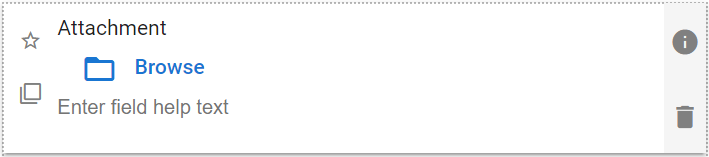
An Attachment field allows you to select and attach one or more files, similar to attachment files in an email except that they stay associated with this specific field. You can add as many attachment fields as you need, and each field’s attachments stay associated with the field they were attached to. (Email attachments tend to be shown at the top or bottom of the email).
| The default look of the Attachment component |
 |
Attachment Field Properties
| Impostazione | Descrizione |
| Scheda Base / Impostazioni generali | |
| Nome visualizzato Testo di aiuto del campo Obbligatorio |
Vedi Caratteristiche generali del campo |
| Nome pulsante | Consente di modificare il testo visualizzato accanto all'icona della cartella, dove l'utente fa clic per allegare un file. Il valore predefinito è "Sfoglia", come mostrato nella schermata sopra. |
| Validations Tab / Upload Settings | |
| Max File Size | Select from a range of maximum allowed attachment size, from 0.1 MB to 100 MB. |
| Messaggio da mostrare agli utenti | Il messaggio da visualizzare se il file allegato supera il valore massimo consentito per le dimensioni dei file. |
| Allow Multiple Attachments | Enable if you would like the attachment control to be able to store more than one attachment. |
| Allow user to enter description for each upload | Enable if you would like the option of adding a text description to each attachment added to this field. This might help users find the correct attachment if multiple files are attached, or if there are multiple kinds of files that might be attached in a specific app. |
| Validations Tab / Upload Settings | |
| Message to display if non-allowed file type is uploaded | The message to display if the file being attached is not on the approved list of attachment file types. |
| Select the file types you will allow users to attach to this field. | |
| Scheda Avanzate / Visibilità condizionata – Vedi Visibilità condizionata | |
Esempio di utilizzo
| Attachment Usage Example – with optional descriptions |
 |