
Campo di testo a riga singola. Esempi tipici di utilizzo includono: Nome, Città, Codice articolo.
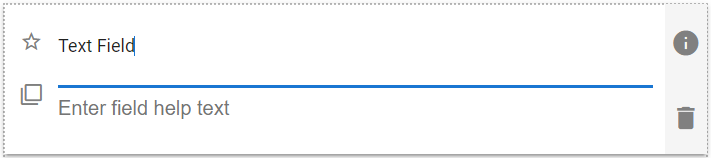
| Aspetto predefinito del campo Testo |
 |
Proprietà del campo di testo
| Impostazione | Descrizione |
| Scheda Base / Impostazioni generali | |
| Nome visualizzato Predefinito Testo di aiuto del campo Obbligatorio |
Vedi Caratteristiche generali del campo |
| Scheda Base / Sezione Convalida | |
| Numero minimo di caratteri consentiti | Consente di impostare un numero minimo di caratteri. Se abilitato, vengono visualizzati i seguenti due campi: |
| Lunghezza minima | Inserisci il numero minimo di caratteri desiderato. |
| Messaggio da mostrare all'utente | Inserisci il testo da visualizzare quando il valore inserito dall'utente ha un numero di caratteri inferiore al valore Lunghezza minima. |
| Numero massimo di caratteri consentiti | Consente di impostare un numero massimo di caratteri. Se abilitato, vengono visualizzati i seguenti due campi: |
| Lunghezza massima | Inserisci il numero massimo di caratteri desiderato. |
| Messaggio da mostrare all'utente | Inserisci il testo da visualizzare quando il valore inserito dall'utente ha un numero di caratteri superiore al valore Lunghezza massima. |
| Scheda Base / Sezione Formato | |
| Formato testo | Seleziona da:
|
| Rimuovi spazi extra | Consente di rimuovere dal testo del campo gli spazi duplicati, ovvero due o più spazi consecutivi. |
| Scheda Avanzate / Concatenazione – Vedi sotto | |
| Scheda Avanzate / Visibilità condizionata – Vedi Visibilità condizionata | |
Concatenare testo
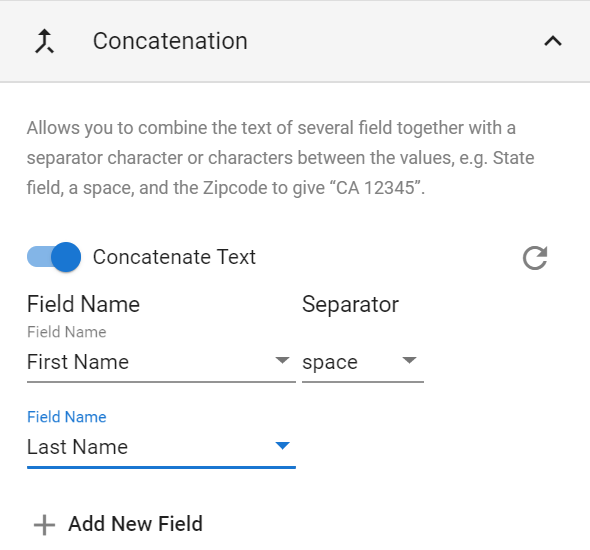
Consente di combinare il testo di diversi campi di tipo testuale insieme a uno o più caratteri separatori tra i valori, ad esempio il campo Stato, uno spazio e il codice postale per ottenere "CA 12345".
| Opzioni di concatenazione del testo |
 |
| Impostazione | Descrizione |
| Nome campo | Seleziona il campo desiderato dall'elenco oppure seleziona Personalizza e digita il testo desiderato nel campo. |
| Distanziatore | Selezionare un'opzione dall'elenco oppure selezionare Personalizza e digitare il testo desiderato nel campo. Le opzioni disponibili sono:
|
 |
>Elimina questa riga. Disponibile solo per le righe tre e successive. |
 |
Aggiunge un nuovo campo Nome campo alla fine dell'elenco e aggiunge un campo Spaziatore dopo il campo Nome campo precedente. |
Esempio di utilizzo del campo di testo
| Esempio di utilizzo del testo |
 |
Video dimostrativo
Il seguente video illustra la creazione dei campi di testo: