
Workflow action buttons are the way a reviewer can tell an app what they would like to do to the record they are reviewing. This Workflow Actions Advanced article builds upon the basics covered in the article Workflow 2 – Action Buttons (Basics). Please read the basics article for information about what action buttons are and how to create them.

Manage Action Buttons

Click and drag the six (6) dots icon on the far left of the action button to reorder the list of buttons. When displayed on records, while using the app, the buttons will display in list order from left to right, starting with the first button in the list.
You can edit the button name by selecting it here. This is one of two places you can edit the name – the other being the Format section of the button properties.
Properties opens the button properties.
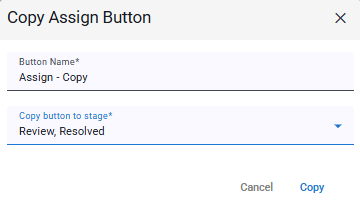
Copy will duplicate the button and all of it’s properties, and allow you to add it to any stage(s), including the current stage.
Remove deletes the button.
Configuring Action Buttons
There are a lot of possible configuration options for workflow action buttons. To help get the essential options covered more simply, we have split the documentation for workflow action buttons into two articles. This ‘Basics’ article, and the subsequent ‘Advanced’ article (Workflow: 3 – Action Buttons (Advanced)). We will cover the most commonly used action button features here, and the more advanced ones in the second article.
After creating an action button, the button properties panel will immediately open on the right. To edit the settings of an existing action button, click on the ‘Properties‘ icon on the button.

The button properties are broken down into four tabs:
- Actions: Define what the button should do, the actions to run when the button is clicked.
- Security: Configure button visibility.
- Dialog: Settings for an optional confirmation dialog.
- Format: Define the visual appearance of the button.
- Rules: Configure optional Pre-Save Rules that update record values before the record is saved and before the button’s remaining workflow actions run.
Actions
There are two classes of actions: Default Actions and Conditional Actions.
Default Actions run when the action button is clicked, unless a conditional action replaces it. If you have no conditional actions, the Default Actions will always run. There can be multiple default actions, such as moving the record to the next workflow stage and also sending a notification email.
Conditional Actions have a logical test associated with them, such as “Department field contains Sales” or “Total Value field is greater than 10,000”. If this test is true, then the associated conditional action(s) will run. There can be multiple conditional actions, and each can have more than one condition that must be met.
At the top of the Actions Tab are two options that control what happens when one or more conditions do match the current situation. The options, and the effect they have, are:
- Run the actions for the first condition that matches, otherwise run the default actions: Only one set of actions will be run. The default actions will run if no conditions match. The matching condition’s actions will run if only one condition matches. If more than one condition matches, then only the first matching one in the listed order will run.
- Run the actions for all the conditions that match, including default actions: More than one set of actions might run. The default actions will always run, plus the actions from any matching condition’s actions.
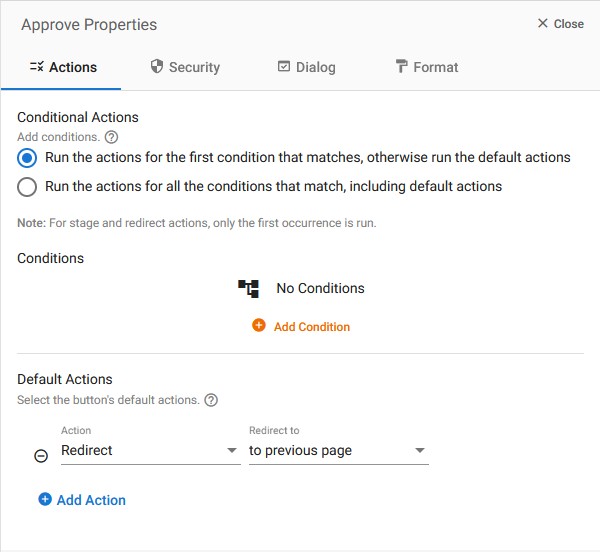
Note: If you have multiple change stage or redirect actions run at the same time, only the first occurrence will run.
Action Options
A workflow action button can run one or more actions when selected. Actions can be included in the button’s Default Actions or within one or more Conditional Actions.
Some action types are configured directly on the workflow button. Other action types use reusable actions created in Application Designer > Actions. A reusable action can be selected by a workflow button or added to a trigger.
The available action types are:
| Action Type | Description |
|---|---|
| Change Stage | Moves the current record to another workflow stage and updates its workflow status. After selecting this action, choose the required destination under Next Stage. Only one stage change can be applied during a single button execution. |
| Send Email | Sends an email using an email template associated with the form. Select an existing email template or create a new one. The template controls the sender, recipients, subject, message, buttons, attachments, conditional content, and other email settings. See Workflow: Email Template Editor. |
| Generate PDF | Generates a PDF from a PDF template associated with the form and downloads it for the user. Select an existing PDF template or create a new one. See PDF Templates. This differs from PDF Attachment, which can email the generated PDF or save it to an Attachment field. |
| Redirect | Controls where the user is taken after the action button finishes. Available destinations can include viewing the current record, editing the current record, another form, a page, a view, the previous page, or the application dashboard. When a form, page, or view is selected, choose the specific destination. |
| App Notification | Sends an in-app notification to selected roles or users. The notification title can contain values from the current record. Recipients can include roles with access to the current workflow stage or specifically selected roles and users. Create or select the reusable App Notification action from the button. |
| Assign User to Role | Adds users from a supported form field to a form-defined or dynamic role. The action can add users to the role or replace its existing members, depending on the selected behavior. Supported sources include User, User List, Created By, and Updated By fields. Create or select the reusable Assign User to Role action from the button. |
| Create Record | Creates a record in a selected form within the current application or another GW Apps application. Values can be copied from the current record, entered as fixed values, cleared, or generated using supported formulas. Create or select the reusable Create Record action from the button. |
| Update Record | Updates one or more existing records in the current application or another GW Apps application. Filters determine which records are updated, while field mappings determine the values that are changed. The action can update the current record or records in a different form. Create or select the reusable Update Record action from the button. |
| Webhook | Sends an HTTP or HTTPS request to an external system. The action supports request methods, authentication, headers, full or partial record payloads, custom JSON, accepted response codes, timeouts, and retries. Create or select the reusable Webhook action from the button. See Workflow: Actions for the current Webhook configuration reference. |
| Create Word Doc | Generates a Microsoft Word .docx file from an uploaded Word template. Field shortcodes in the template are replaced with values from the current record. The generated document can be sent using an existing email template, attached to an Attachment field, or both. This action supports Microsoft Word documents only; it does not generate Excel files. |
| PDF Attachment | Generates a PDF from an existing GW Apps PDF template. The generated PDF can be sent using an existing email template, saved to an Attachment field on the current record, or delivered through both methods. Create or select the reusable PDF Attachment action from the button. See Workflow: Actions. |
| Calendar Event | Creates or updates an event in Google Calendar using values from the current record. It supports conditional creation or updating, dynamic titles and descriptions, start and end dates and times, all-day events, attendees, attendee notifications, Google Meet conferences, and conditional event deletion. The action can be created directly in the Workflow Builder or separately under Actions for use in a workflow or trigger. See Create or Update a Google Calendar Event. |
| Create Google Doc | Generates a Google Doc or Google Sheet from a selected Google Drive template. Field shortcodes in the template are replaced with values from the current record. The generated file retains the template’s structure and formatting and can be stored in a selected Drive folder, shared with selected users, and attached to a Drive Picker field. Despite the action name, both Google Docs and Google Sheets are supported. |
| Select First Lookup Result | Runs a configured Lookup field and automatically selects the first result returned. This is useful when the lookup is expected to produce one preferred result and the user should not be required to select it manually. The action can be included in a workflow action button or used as part of a trigger. |
| AI Agent | Processes record information using an AI Connection configured in Platform Settings. Available agent types include Attachment Extraction, Sentiment Analysis and Categorization, and Translation. An AI Agent can extract information into form fields, classify record content, translate text, and optionally move the record to another workflow stage after processing. See Attachment Extraction, Sentiment Analysis and Categorization, and Translation. |
| Document Signing | Sends selected documents to DocuSign for electronic signature. The action supports Word documents, static PDFs, and GW Apps PDF templates; signer order and signature anchors; DocuSign email content; optional workflow-stage changes; and attaching the completed document to the record. A connected and authorized DocuSign account is required. See Document Signing Action – DocuSign Integration. |
Action availability: The actions displayed can depend on the features enabled for the customer, configured platform connections, the selected form, and the current application configuration. External actions may require authorization and permissions for the connected service.
Multiple actions: A button can contain multiple actions. Arrange them in the order required by the process. If multiple Change Stage or Redirect actions would run during the same button execution, only the first applicable occurrence is used.
For detailed configuration of reusable actions, see Workflow: Actions.
Security Tab
The Security Tab is where you can define when the button should display and when it should be hidden. Additional role and workflow stage based button visibility settings can be configured in the Field Security. The options here affect all users no matter what their role.
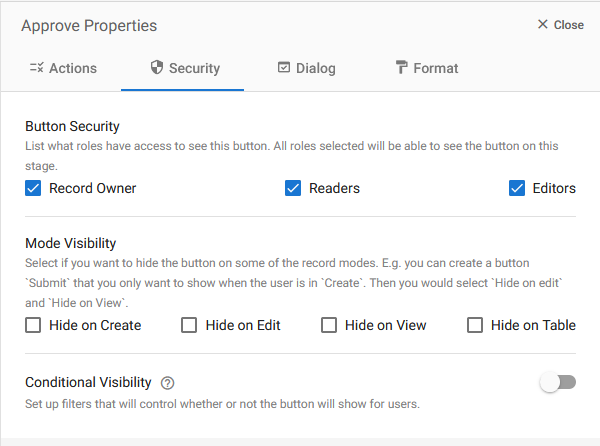
Button Security defines which roles have the ability to see the button at this workflow stage. If you add a new role to your application after creating an action button, the new role will not automatically have access to view the button, you must check the box manually.
Mode Visibility allows you to hide the button when a record is in specific modes, e.g., during Create, Edit, View, or in the Action Column of a view (Hide on Table).
Conditional Visibility defines the visibility of button based on whether or not certain conditions are met, e.g., hide the button if the value of the “Purchase Total” field is less than 10,000.
Skip Validation
Warning: Enabling Skip Validation allows this action button to continue without running the form’s normal field and form validation. This can allow incomplete or otherwise invalid record values to be saved. Enable it only when the workflow requires the user to proceed without satisfying the form’s normal completion requirements.

When Skip Validation is disabled, the record must pass the applicable field and form validation before the action button can complete.
When Skip Validation is enabled, validation associated with clicking this specific action button is bypassed. Typical uses include buttons such as:
- Cancel Request
- Withdraw
- Return to Draft
- Close Without Completing
- Route for Correction
Skip Validation has the following boundaries:
- It does not give the user additional record, field, workflow-stage, or action-button permissions.
- It does not make hidden or read-only fields editable.
- It does not override the button’s role, mode, or conditional-visibility settings.
- It does not disable Pre-Save Rules or the actions configured on the button.
- It does not bypass requirements enforced independently by an integration, API, database, or other downstream service.
- It applies only to the action button on which it is enabled. Other saves and workflow buttons continue to use their own validation settings.
Test the button with required fields, conditional validation, hidden fields, and Pre-Save Rules before enabling it in a production workflow.
Dialog Tab
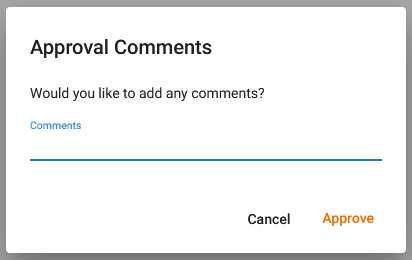
A confirmation dialog can include a dedicated comment field in addition to the selected form fields.
Enable Add Comment Field when users should provide context for the workflow decision, such as an approval note, rejection reason, or explanation for returning a record.
The comment can be configured as required. When required, enter a clear validation message explaining what the user must provide before continuing.
A submitted comment is stored with the record’s history so it can be reviewed alongside the related workflow activity. Canceling the confirmation dialog stops the action and does not submit the comment.
The dedicated comment is separate from the form fields displayed in the confirmation dialog. It does not replace field validation or change the values of regular form fields.
For complete setup instructions and Record History behavior, see Confirmation Dialog Comments.
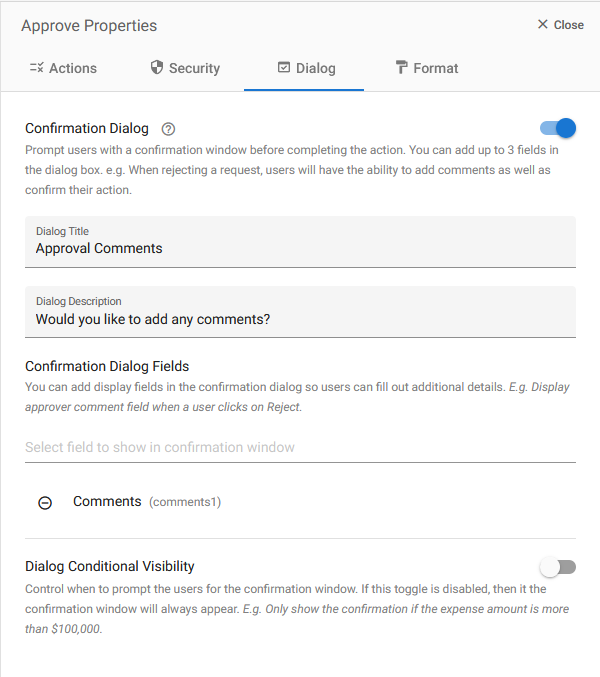
Dialog Title will display at the top of the dialog.
Dialog Description will display below the title in the dialog.
Confirmation Dialog Fields allows you to add up to three (3) fields from your form to the dialog. Depending on the field security, these fields may be edited or filled out within the dialog.
Dialog Conditional Visibility determines if the dialog will display depending on whether or not specific conditions are met.
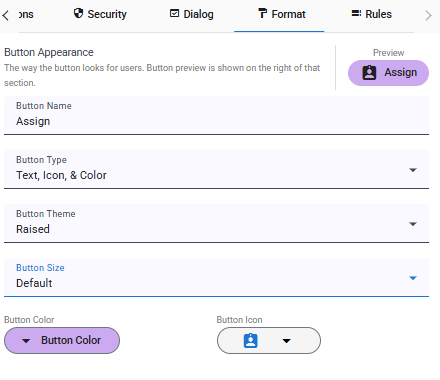
Format Tab
The Format tab is where you define the visual appearance of your button. The top-right corner displays a preview of changes as you make them.
Rules Tab: Pre-Save Rules
Pre-Save Rules allow an action button to update values on the current record before the record is saved and before the button’s remaining workflow actions run.
Rules can use conditions to determine when their field updates apply. Depending on the selected rule strategy, GW Apps can:
- Run the actions for every matching rule.
- Run only the actions for the first matching rule.
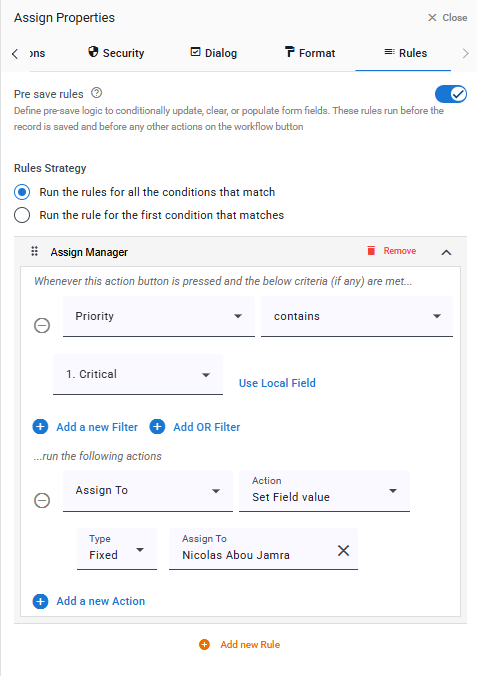
Available rule operations can clear, set, calculate, copy, or populate supported fields. This is useful when a later workflow action—such as an email, stage change, record action, or document-generation action—must use an updated value.
For complete configuration instructions, supported rule actions, conditions, and examples, see Pre-Save Rules on Workflow Action Buttons.
 English
  Spanish