
Forms are the primary building blocks of GW Apps applications. They define the information collected, displayed, and stored in application records.
Users interact with forms to:
- Create records.
- View record information.
- Edit permitted fields.
- Perform workflow actions.
- Add comments and attachments.
- Review record history.
A record is one saved instance of a form. For example, every request submitted through an IT Request form becomes a separate record.
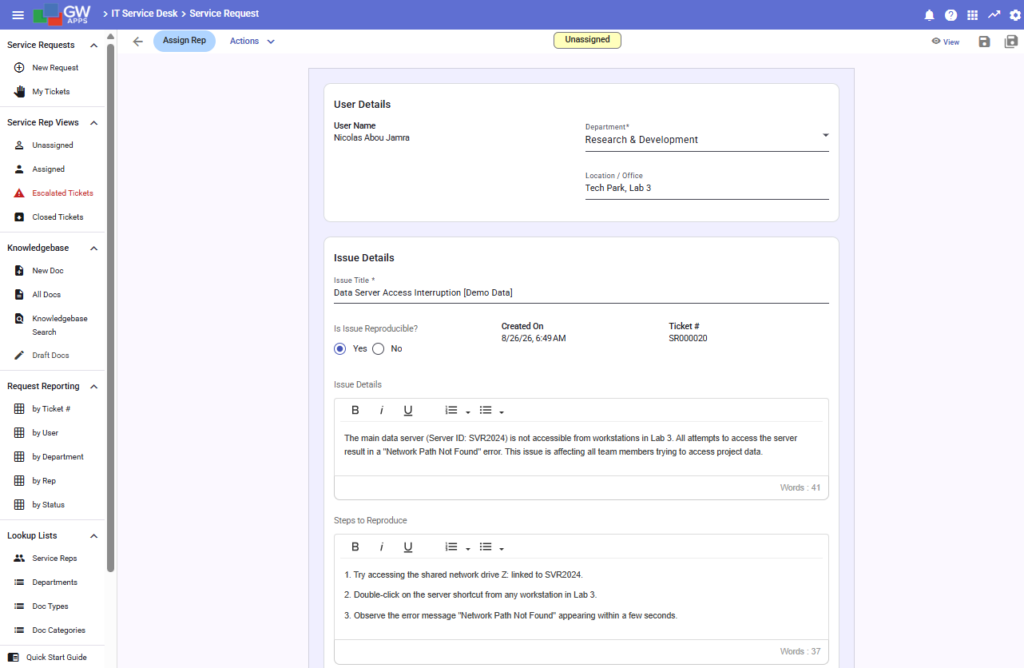
Forms Dashboard
The Forms Dashboard displays the forms available in the current application.
App Designers can use it to:
- Create a form.
- Open and edit an existing form.
- Launch a form for testing.
- Duplicate a form.
- Review form information and design history.
- Export form-field definitions when available.
- Delete a form that is no longer required.
A new form can be created manually or, when available, by using AI to generate an initial set of suggested fields.
For detailed instructions, see Forms Dashboard & Creating Forms.
Form Editor
The Form Editor is where App Designers configure a form’s fields, layout, workflow, security, and general behavior.
The Form Editor contains the following primary areas:
| Area | Description |
|---|---|
| Design | Add fields and components, organize sections and columns, and configure field properties. |
| Workflow | Define workflow stages, action buttons, routing, actions, and record-processing behavior. |
| Security | Control which roles can view, edit, or delete records and configure field, section, and workflow-button access. |
| Settings | Configure the form name, description, record behavior, Record ID, unique fields, layout, and record-creation permissions. |
| Anonymous | Configure anonymous access when the feature is enabled for the platform. |
| SLA | Configure service-level targets and measurements for the form. |
Some areas appear only when the corresponding feature has been enabled or configured.
For a complete introduction, see Form Editor Overview.
Form Fields and Components
Form fields define the individual values stored in a record.
Available field types can be used to collect information such as:
- Text and formatted text.
- Numbers, currency, and calculated values.
- Dates and times.
- Lists and selections.
- Users and roles.
- File attachments.
- Lookup values.
- Addresses.
- Dynamic table data.
- Other supported information.
Components such as sections, columns, labels, and layout elements help organize the form without necessarily storing a separate record value.
Each field type has its own properties, validation options, formatting, and supported behavior. See the articles under Form Fields & Components for field-specific instructions.
Workflow and Security
Forms can include a workflow that controls how records move through a business process.
Workflow stages can represent statuses such as:
- Draft.
- Submitted.
- Under Review.
- Approved.
- Rejected.
- Completed.
For each stage, App Designers can configure role permissions, field access, available action buttons, routing, and automated actions.
For more information, see Workflow Editor.
Form Settings
Form-level settings control behavior that applies across the form, including:
- Form name and description.
- Language behavior.
- Record copying.
- Record-status visibility.
- Record History comments.
- Record ID formatting.
- Unique-field combinations.
- Form width and outline.
- Roles permitted to create records.
For detailed instructions, see Form Editor: Settings Tab.
 English
  Spanish