
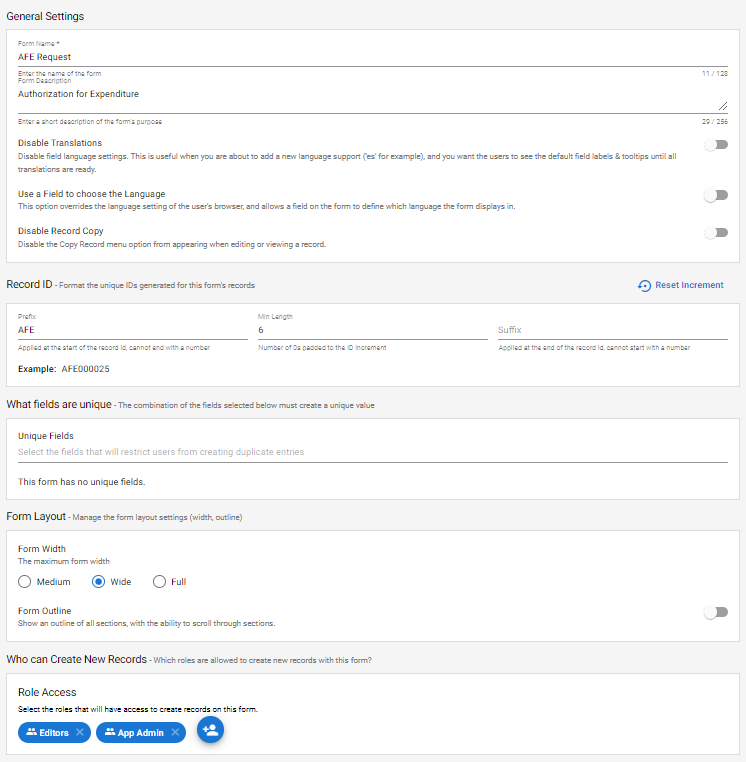
The Settings tab is where the App Designer can set the Name and Description for the form, along with who can create records using this form, and several other options.
| Settings Tab |
 |
Settings Tab Properties
| Property | Description |
| General Settings | |
| Form Name | The name of the app. Make it descriptive but not too long. |
| Form Description | A more detailed description of what the app is for. This text will appear in the App Dashboard. |
| Disable Translations | Turn off all translations for this form. Turn this option on before starting to add multiple language support, and the users to see the work-in-progress translations. Once all of the translations are completed, you could disable this option and then users would see all of the completed translations. |
| Use a Field to choose the Language | This option overrides the language setting of the user’s browser, and allows a field on the form to define which language the form displays in. By default, fields are translated according the the users browser language settings. This option overrides browser translations, and instead allows users to select their desired language from a field (e.g., a drop-down field). |
| Disable Record Copy | Disable the “Copy Record” feature in the event that users should not be able to duplicate/copy records. By default, the ability to “Copy Record” is available while editing a record, viewing a record, or from within a View. This setting disables this ability while editing and viewing a record. This option can also be disabled for Views, in the View Settings tab. |
| Record ID
A record ID is a unique string that identifies that record among all records created with this form. It can simply be an incrementing number (e.g. 1, 2, 3, 4, etc) or more complex with text before and after the number, and a set number of digits for the number part (e.g. SKU0001EU, SKU0002EU, etc). | |
| Reset Increment | Click on this button to reset the numeric middle part of the record ID, so that records will start counting up from “1” again.
Note: Resetting the increment could create duplicate record IDs and cause issues with your audit history and business process. Be careful using this feature. Most likely usage would be for after testing of an app during final development, the records created during testing could be deleted and the Record ID increment reset. |
| Prefix | Optional. The text that displays before the number part of the record ID. |
| Min Length | Optional. A fixed minimum number of digits to display. The Record ID will have the number part padded with ‘0’s to make up the minimum length. |
| Suffix | Optional. The text that displays after the number part of the record ID. |
| What fields are unique
The unique fields feature allows you to define one or more fields whose values must together make a unique key to identify this record. E.G. if you had only the FirstName field in What fields are unique you would not be able to have two records with a FirstName of “John”, or anything else. If you the FirstName and LastName fields in What fields are unique you would be able to have two records with a FirstName of “John”, but not two “John” “Smith”s. | |
 | Clicking on Add Unique Field will display a field selection drop-down where you can select a field to be part of the unique field combination. You can add as many fields as you desire. To remove a field selection, and reduce the number of fields making a record unique, click on the X to the right of the desired field selection. |
| Form Width | |
| Form Width | Sets the display width of the form. Sometimes when a form is displayed full screen width the fields look too spread out, this setting lets you restrict the maximum display width of the form so that it might look better. Choose Medium, Wide or Full. |
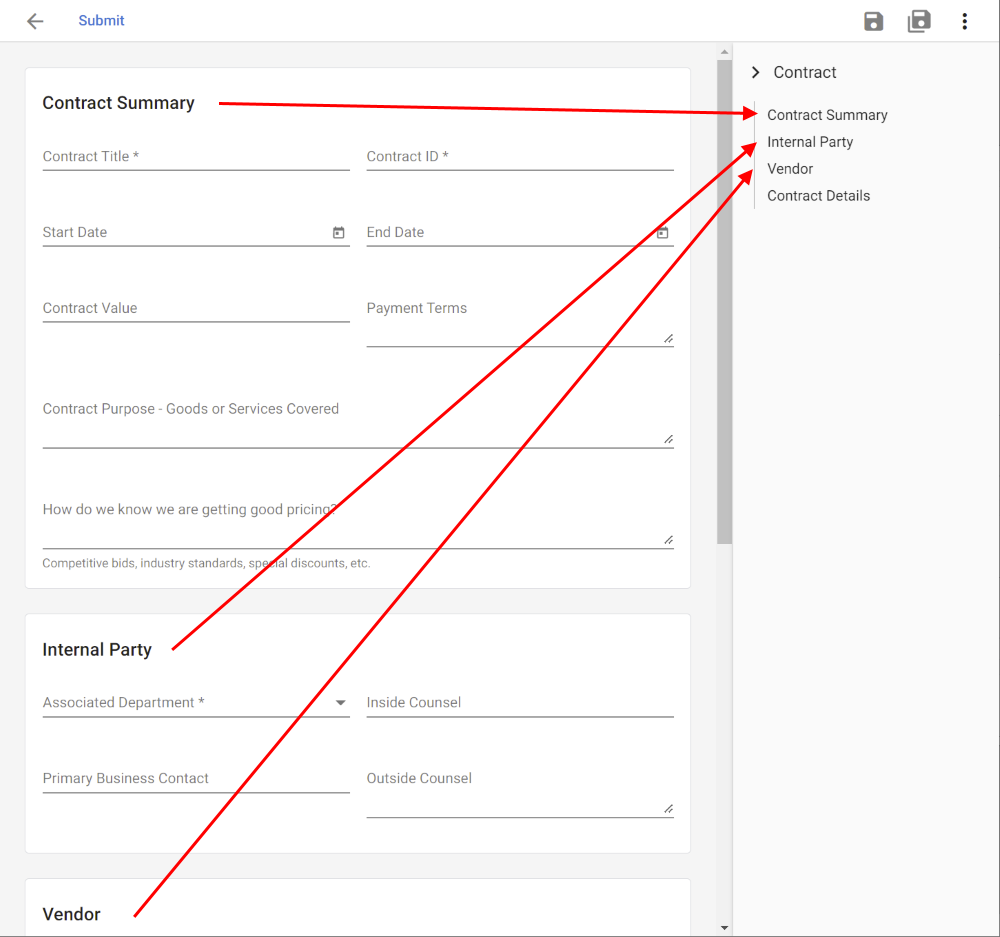
| Form Outline | Turns on a right-hand-side outline of the form, to allow rapid navigation between the sections of a long form. (See example below.) |
| Who can Create New Records | |
| Role Access | Select the role or roles that are allowed to create new records with this form. |
| Form Outline Example |
 |
Next Steps
| Below are links to articles that cover the other tabs of the Form Designer: |
| Design – Form Editor Overview |
| Workflow |
| Security |