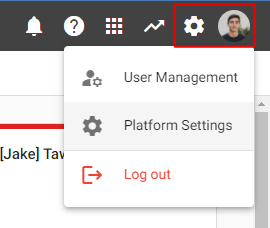
Platform Settings allow a Super Administrator from your organization to configure options in the platform to best suit your organization. To access these settings, click either your account icon or the cogwheel icon in the top right corner and select Platform Settings.
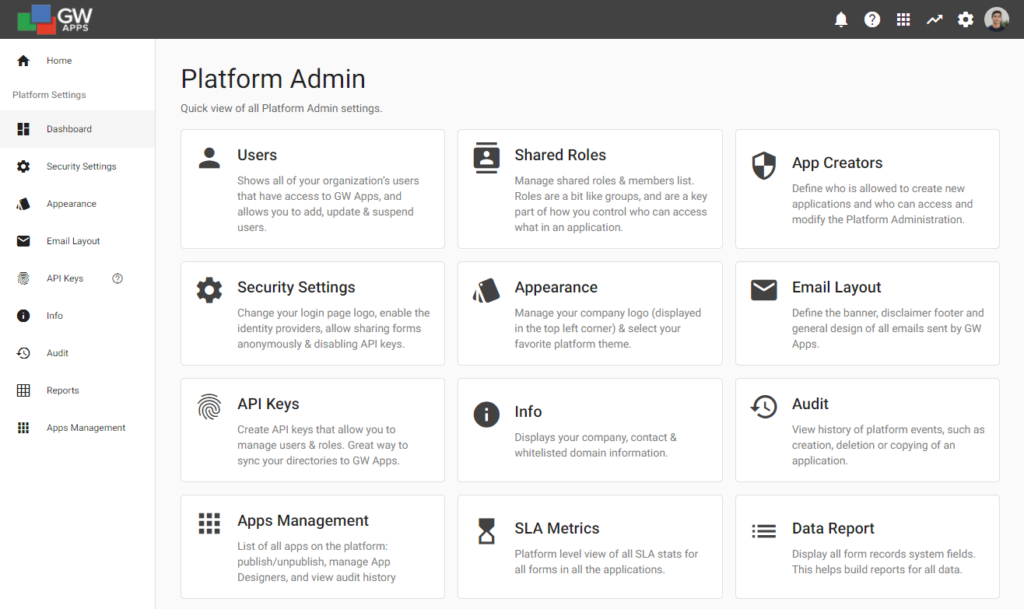
Overview
Platform Admin allows authorized Super Administrators to manage organization-wide users, access, security, appearance, integrations, reporting, auditing, applications, and automation monitoring.
The sections available in your environment may depend on enabled platform features and your organization’s configuration. Optional or on-demand services may not appear for every customer.

Open Platform Admin
- Sign in using an account with Super Administrator access.
- Select the settings icon in the upper-right platform header.
- Open Platform Settings or Platform Administration, depending on the label shown in your environment.
- Select a dashboard card or use the left navigation to open the required section.
If you cannot see Platform Admin, confirm that your user is assigned the Super Administrator role.

User and Access Management
Users
View everyone who has access to the platform. Super Administrators can add or import users, update user details, manage application access, suspend users, reactivate users, and review user audit information.
For the complete user-management workflow, see User Management: Users.
Shared Roles
Create and maintain platform-level roles whose membership can be reused across multiple applications. Changes to a shared role’s membership affect every application using that role.
For role creation, membership, linked applications, and importing roles into applications, see User Management: Shared Roles.
App Creators
Define who may create applications and who has Super Administrator access to Platform Admin. A user must already exist on the platform before these permissions can be assigned.
For assigning or removing these platform roles, see User Management: App Creators & Super Administrators.
Security, Branding, and Communication
Security Settings
Manage the company login page, allowed identity providers, Same Domain Login, app-sharing policy, app-publishing review, anonymous-access availability, and platform-wide API access.
For the security-sensitive controls and their effects, see Platform: Security Settings.
Appearance
Manage the platform logo, favicon, platform theme, dashboard sidebar, and application categories used to organize the Apps Dashboard.
For logo, theme, category, and dashboard-grouping settings, see Platform: Appearance.
Email Layout
Define common visual and sender settings for emails produced by applications on the platform, including banner or header content, footer content, background colors, Sender Name, and Reply To.
For the layout editor and platform-to-template fallback behavior, see Platform: Email Layout.
Platform Services and Integrations
API Keys
Create and manage platform API keys for approved platform-management integrations. Keys can be limited to allowed identities, entities, and scopes, and each key provides a generated API Reference.
For key creation, scope configuration, rotation, and generated-reference access, see Platform: API Keys.
BigQuery Datasets
Create and manage BigQuery dataset connections so approved form data can be written to Google BigQuery for analytics and external reporting. BigQuery integration is an on-demand feature and must be enabled for the platform.
For dataset prerequisites, service-account use, application setup, and the one-way event model, see BigQuery Integration.
Directory Synchronization
Configure an optional directory synchronization connection to keep platform accounts aligned with an external identity directory. The current interface supports Okta configuration, including sync frequency, Okta domain, client ID, private key, and optional Demonstrating Proof of Possession (DPoP). Availability and supported providers depend on the customer’s enabled configuration.
For more information on supported directory synchronization connections, see Active Directory Sync.
AI Connections
AI Connections are available from the Platform Admin navigation even when they are not displayed as a dashboard card. Connections provide centrally managed access to supported AI providers for AI Actions used across applications.
For prerequisites, supported providers, connection creation, and connection management, see AI Connection.
Information, Monitoring, and Governance
Info
Review organization information such as company name, location, locale, language, creation date, primary contact, and whitelisted domains. Some organization or domain changes may require assistance from GW Apps Support.
For the current organization-information fields, see Platform: Info.
Audit
Review a reverse-chronological history of platform-level events, including the user, action, affected object, and timestamp. This audit is separate from application design history and record-level activity.
For platform-event history and search, see Platform: Audit.
Apps Management
Manage applications across the platform, including published state, publishing-review status, App Designers, and application audit history. Current environments may show states such as Draft, In Review, Published, and Rejected when publishing approval is enabled.
For platform application administration, see Platform: Apps Management.
SLA Metrics
View platform-level SLA statistics across forms and applications. SLA metrics help Super Administrators review open, delayed, completed, and average processing-time results for configured SLAs.
For configuring and interpreting SLAs, see Workflow: Service Level Agreement (SLA).
For how SLA Stats and platform reports are presented to authorized users, see Reporting Overview.
Data Report
Create and maintain platform-level reports that can combine compatible record fields across forms and applications. Reports can be configured with columns, form and field filters, display settings, and Shared Role security, then viewed from the Reporting area.
For more information on current platform-level reports, see Platform: Reports.
Triggers
Monitor triggers across all applications from one platform-level list. The current screen identifies the trigger type, name, schedule, owning application, last run, and enabled or disabled status. Super Administrators can search and filter the list and use the status toggle to control unwanted triggers.
This section monitors triggers across the platform; triggers are created and configured inside their owning applications.
For creating and configuring a trigger within an application, see Workflow: Triggers.
Feature Availability
- Platform Admin is restricted to Super Administrators.
- BigQuery Datasets is an on-demand feature.
- Directory Synchronization is optional and its provider options depend on the customer’s configuration.
- AI Connections appear only when the AI integration capability is available to the environment.
- Publishing-review states appear when App Publishing Approval is enabled.
- The exact Platform Admin navigation may vary as new platform features are enabled.